
How to update the Spider Pro
If you encounter the problem that the MCU cannot be connected, or after updating the Klipper main program, it prompts an error that the version is inconsistent, you can consider updating the Spider Pro firmware:
The update of SPider Pro is consistent with all boards supported by Klipper, and is divided into the following steps:
1.Enter Spider Pro DFU mode, which is download mode
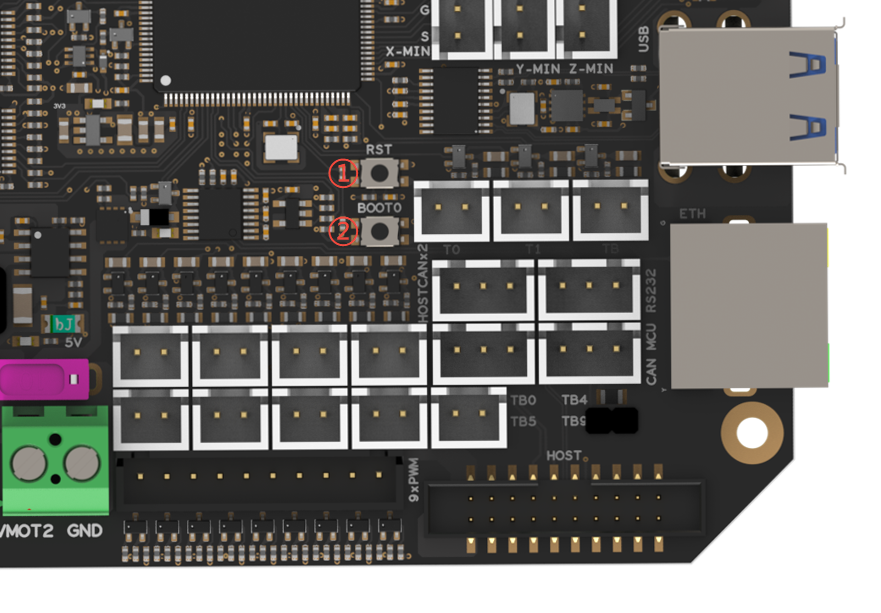
- Press ② BOOT0 and don't release it.
- Press ① RST and release it after 1 second.
- Release ② BOOT0.
Then, Your Spider Pro will enter DFU mode.
2.Enter the Linux backend
Use an Ethernet cable or WiFi to connect to your LAN. You can see the IP on the screen. Use this IP to connect to the Linux backend via SSH. In addition to the IP, you can also use venturexl.local to connect to the Klipper host.
username:fysetc
password:fysetc
If you don't know how to use SSH, please refer to the following tutorial:
It is recommended to use the mobaxterm tool.
Example SSH Guide
this guide is writed by Liyan Gong from here
Step 4: SSH into Your Raspberry Pi
Enter the following command in the terminal ‘ssh pi@IP address’, after executing the SSH command,you’ll be promoted to enter the password for your Raspberry Pi. Type the password and press Enter.
note:The IP address is the Raspberry PI IP address you found in the previous step. pi is the default username for the Raspberry Pi, and if you’ve changed your username, you’ll need to replace it with yours.
MobaXtermis recommended for connection as follows:
After opening, the running interface is as follows:
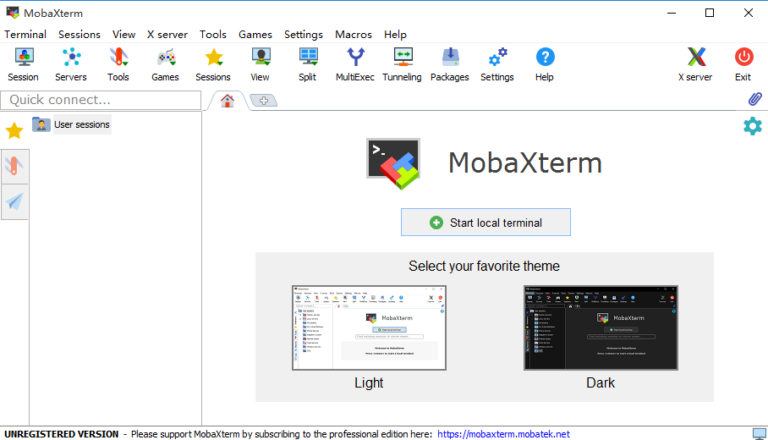
1.Click the ‘Session’button

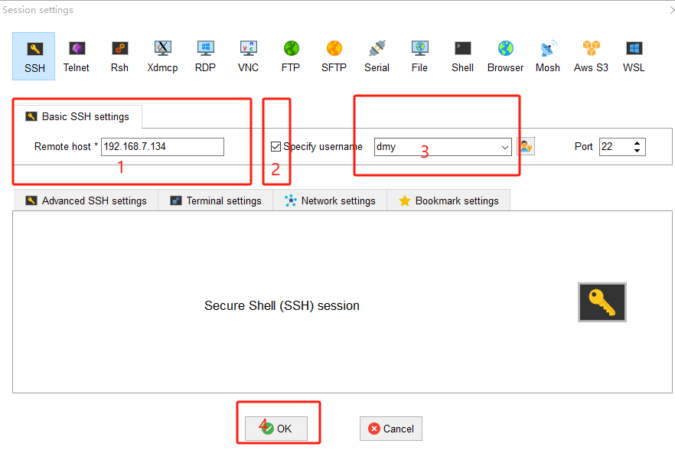
2.In the new window that pops up, select ‘SSH’

3.In the dialog box that is displayed,enter the IP address of the Raspberry Pi,select the specified user name,enter the user name,and click ‘ok’
4.In the new screen, type raspberry, the user password for the Raspberry PI, and press Enter.

note:
*Enter the password without any prompt by default, the first time you use it is easy to misunderstand as not entered, but the Linux system input password is like this, pay attention to it.
*If you change the user name and password, you need to enter the changed user name and password.
–If the following message is displayed, the user name or password is wrong. If the password is wrong, continue to enter it again. If the user name is wrong, you need to close the current command line window and start from the second step.

—If the following interface is displayed, displaying the command line interface with the user name, the login is successful.
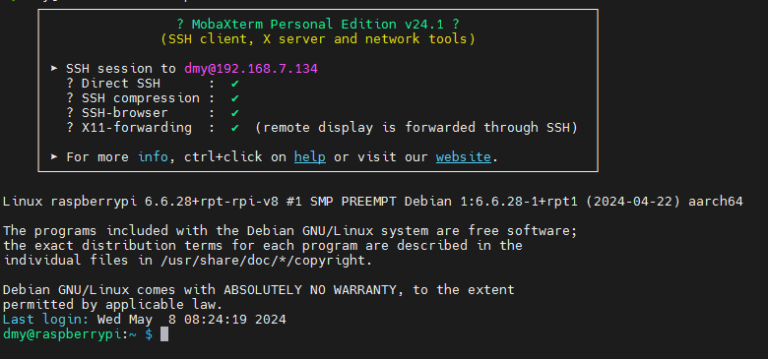
Step 5: Connected Successfully
If the username and password are correct, you should now connect to the Raspberry PI via SSH. Once turn on ssh raspberry pi, you will see the Raspberry PI command line interface in the command prompt on your terminal or PC.
You can now execute commands on your Raspberry Pi remotely through SSH. Remember to keep your Raspberry Pi’s software updated and use secure practices, such as changing default passwords and disabling SSH access for the root user if not needed.
3.Compile and Upload the firmware
lsusbUse this command to make sure your Spider Pro is in DFU mode. If not, repeat the first step.
cd klipperEnter the klipper folder, because the following operations will be performed in this folder
make menuconfigEnter the configuration interface, use the up and down arrow keys to select, and the Enter key to confirm and select.
Q to exit, Y to save.
make flash FLASH_DEVICE=0483:df11This command will compile and upload the firmware to Spider Pro. If successful, you will see a green "successful" message.