
How to update the CM68 img
CM68 OS Update
CAUTION
- The control board of this kit has been installed with Klipper OS and MCU Klipper firmware at the factory.
- And it's pre-configured.
- As long as the wiring is correct, it can be used after power on.
- Do not perform the following steps unless you are sure you want to reinstall the firmware.
Instructions
The K7-Panel uses the CM68 core based on RK3568 as the HOST of Klipper. It's system is compiled based on Debian 10, and the environment and plug-ins required by Klipper are pre-installed. And we have already filled in the correct UUID in printer.cfg at the factory. After wiring, the Printer can be boot directly.
In general, the pre-installed system can be used directly without re-flashing, unless you encounter unsolvable program problems.
The OS of CM68 on K7-Panel:
- System image files for the first batch of products, click here to download
- Improved the system stability in the internal beta version, and solved the problem of some people always reporting the error "lost MCU communication", click here to download
Update Steps (only support windows system):
-
To save space, we have compressed some image files. Please use winrar to decompress them instead of using the decompression function of Windows. Make sure the suffix of the decompressed file is *.img
-
Install the driver file of RK3568
-
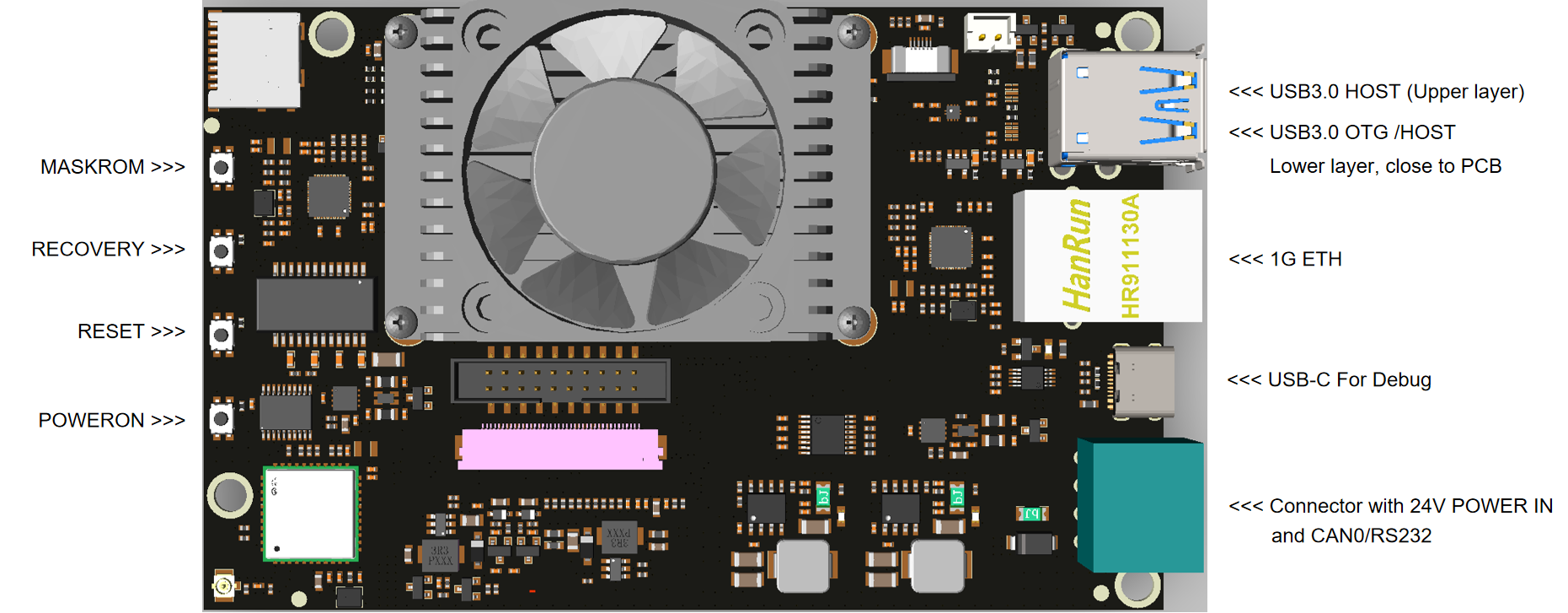
Power on Ventrue XL. Then plug in the USB3.0 A-A cable into the USB-OTG interface on the K7-Panel.
-
Open the "RKDevTool_Release",
-
Click the Upgrade Firmware (升级固件) tab, click the Firmware (固件) button to select the firmware,This usually takes some time to respond, during which time the interface is inoperable.
After selected firmware, it will show like as below
-
Hold the recovery button (need 3-10 seconds.), click the reset button while holding recovery button (No need to hold reset button), when the RKDevTool found device, release the recovery button.
-
Click the Upgrade button to upgrade
-
Wait for the upgrade to complete (It need take more than 10 minutes.). Remember not to cut off the power or unplug the data cable during the process, otherwise the upgrade will fail or even damage the CM68.